Running gVisor on Raspberry Pi 5: A Kernel Configuration Adventure
If you’ve ever tried to run gVisor on a Raspberry Pi 5 and hit a cryptic failure, you’re not alone. The root cause turns out to be a single kernel configuration option, one that most people have never heard of. Let’s dig into what it is, why it matters, and how to fix it.
What Is gVisor, and Why Should You Care?
Before we get into the weeds of virtual address spaces, a quick refresher on what gVisor actually does.
Regular containers (Docker, containerd, etc.) are fast and lightweight, but they share the host kernel. That means a compromised container could potentially attack the host OS, a real concern in multi-tenant or security-sensitive environments. Virtual machines solve this with strong isolation, but at the cost of booting a full separate kernel, pre-allocating memory, and added overhead.
gVisor sits in between these two worlds. It implements a Linux kernel entirely in userspace (called the Sentry) and intercepts all syscalls from your container, handling them in its own sandboxed kernel rather than passing them to the host. Your container thinks it’s talking to a normal Linux kernel; in reality, it’s talking to gVisor. Only a very small, carefully filtered set of host syscalls ever reaches the real kernel. The result is VM-like isolation with container-like efficiency.
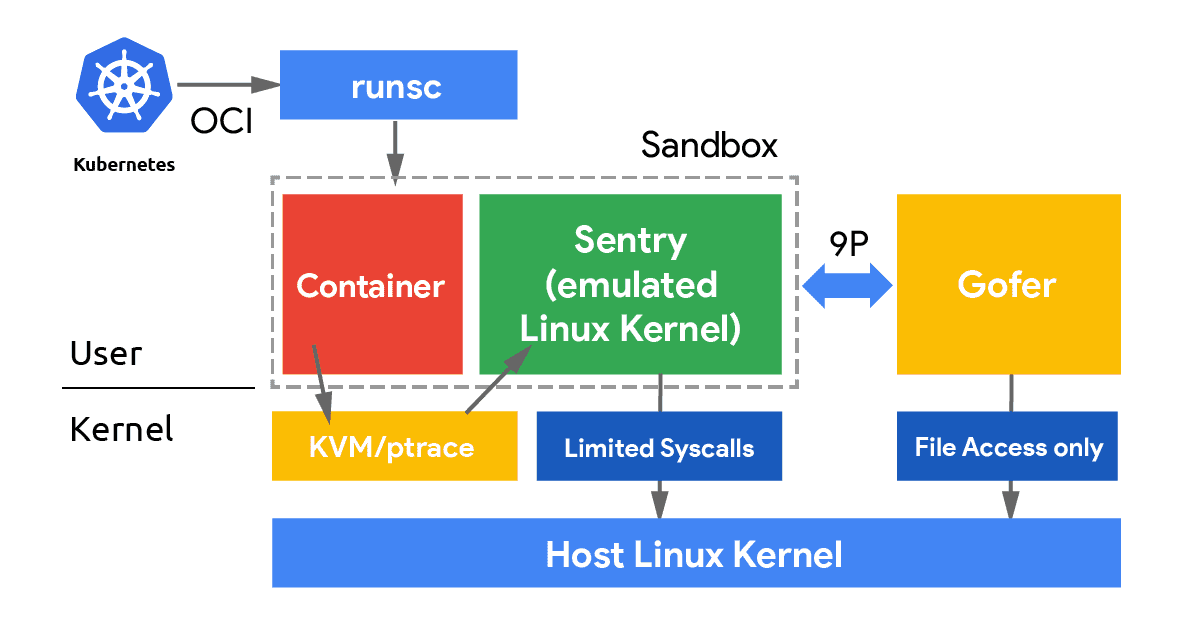
To put it differently: with KVM or Xen, your workload runs inside a hardware-enforced virtual machine managed by a hypervisor. With gVisor, your workload runs inside a userspace-enforced sandbox managed by a software kernel. No VM overhead, no pre-allocated guest memory, no separate boot sequence, but a very strong security boundary.
This makes gVisor a great fit for running untrusted workloads, adding defense-in-depth around sensitive services, or just experimenting with sandboxed containers on edge hardware like a Raspberry Pi 5.
A Quick Detour: How Virtual Memory Addressing Works
Now, about that kernel configuration option. To understand why it matters, we need to take a short detour into how virtual memory works on 64-bit ARM.
When a process runs on your system, it doesn’t work directly with physical RAM addresses. Instead, the CPU and OS cooperate to give each process its own private virtual address space, a range of addresses that the kernel maps to actual physical memory behind the scenes. This is the magic that lets two processes each think they “own” the same address, and prevents them from stomping on each other’s memory.
On 64-bit hardware, you technically have 64 bits to play with, which would give you an astronomical 18 exabytes of address space per process. Nobody actually needs that much, so ARM64 Linux uses only a subset of those bits for addressing:
| Configuration | VA Bits | Virtual Address Space |
|---|---|---|
VA_BITS_39 | 39 bits | 512 GB |
VA_BITS_48 | 48 bits | 256 TB |
The number of VA bits also determines how many levels of page tables the kernel needs to maintain. With 39-bit VA, you get 3 levels of page tables. With 48-bit, you get 4 levels. More levels means more bookkeeping overhead, but massively more addressable space.
Think of page tables like a filing system. A 3-level filing system (39-bit) is faster to traverse for a small library, but if you need to organize a city’s worth of books, you need a 4-level system (48-bit). gVisor is the kind of software that needs to organize a city’s worth of books.
Why Does gVisor Need the Extra Bits?
gVisor runs as a userspace process but it behaves like a kernel, it has to manage its own internal memory layout, track guest virtual address mappings, maintain page table structures for each sandboxed process, and map its own code alongside all of that.
Consider what lives inside the gVisor Sentry’s address space:
- Its own code and runtime memory: the Go runtime, gVisor’s kernel emulation code, internal data structures.
- Guest memory mappings: the sandboxed container’s virtual memory, mapped into the Sentry’s address space so it can inspect and manage it.
- Shadow page tables: gVisor maintains its own representation of the guest’s page table hierarchy to intercept and validate memory accesses.
- Per-goroutine stacks: the Go runtime uses many concurrent goroutines to handle syscalls, timers, and I/O, each needing its own stack region.
With only 39 bits (512 GB) of virtual address space available, the kernel’s own structures already eat into a substantial chunk of that budget. What’s left for gVisor’s internal allocations, guest memory mappings, and page table structures is simply not enough. The sandbox can’t set itself up and fails, often with a cryptic cannot allocate memory in static TLS block panic or a silent exit.
With 48 bits (256 TB), there’s an enormous amount of headroom. The kernel takes its share, and gVisor has plenty of room to work with.
How Does This Compare to KVM or Xen?
This is a fair question to ask: do traditional hypervisors like KVM or Xen have the same requirement?
Sort of, but it shows up differently.
With KVM, the hypervisor needs to map the entire guest physical memory into the host process’s virtual address space. Each vCPU and its memory regions live as mmap-ed regions in the KVM process. The more RAM your VM has, the more virtual address space the host process needs. On ARM64, KVM itself runs in a hardware-enforced privileged mode (EL2), so it has its own separate address space and is less tightly squeezed, but individual KVM-based VMs still need to fit their memory maps within the host VA range.
Xen operates similarly: it runs at the highest privilege level (EL2 on ARM64) as a bare-metal hypervisor and manages guest physical memory directly. Guest kernels run in EL1, and Xen maps guest memory regions independently. Because Xen controls the hardware from the start, it isn’t subject to the same userspace VA constraints that gVisor faces.
gVisor, by contrast, is just a userspace process. It must fit everything, its own code, guest memory mappings, shadow page tables, into a single process’s virtual address space as seen by the host kernel. This is precisely why the VA size matters so much more for gVisor than for KVM or Xen. It’s not running at a privileged hardware level; it’s doing kernel-like things in a space that was originally designed for regular applications.
The Raspbian vs. Ubuntu Difference
Now we arrive at the actual problem on Raspberry Pi 5.
When Raspbian (the default OS for the Pi) compiles its kernel, it targets broad compatibility, specifically, it wants to support 32-bit ARMv7 userspace applications running on a 64-bit kernel. Supporting 32-bit applications on a 64-bit kernel means the kernel has to accommodate two different address space models simultaneously, and using 39-bit VA reduces TLB pressure on hardware that wasn’t designed for massive address spaces. It’s a sensible default for a general-purpose embedded OS, but it comes at a cost for cloud-native software like gVisor.
# Raspbian Bookworm (broken for gVisor):
CONFIG_ARM64_VA_BITS_39=y
# CONFIG_ARM64_VA_BITS_48 is not set
Ubuntu’s ARM64 kernel, on the other hand, targets server and cloud workloads where a full 48-bit address space is expected:
# Ubuntu (works fine with gVisor):
CONFIG_ARM64_VA_BITS_48=y
CONFIG_ARM64_VA_BITS=48
This is why gVisor works out of the box on Ubuntu for Raspberry Pi, and silently (or not-so-silently) fails on the default Raspbian kernel.
Checking Your Setup
Verify Your Kernel’s VA Configuration
cat /boot/config-$(uname -r) | grep CONFIG_ARM64_VA_BITS
If you see CONFIG_ARM64_VA_BITS_39=y, you’re running the 39-bit kernel and will have trouble with gVisor. If you see CONFIG_ARM64_VA_BITS_48=y, you’re good to go.
Install gVisor (runsc)
If you haven’t installed runsc yet, the quickest way is:
# Download and install the latest runsc binary
ARCH=$(uname -m)
URL=https://storage.googleapis.com/gvisor/releases/release/latest/${ARCH}
wget ${URL}/runsc ${URL}/runsc.sha512
sha512sum -c runsc.sha512
chmod a+rx runsc
sudo mv runsc /usr/local/bin/
Then configure containerd to use it by adding to /etc/containerd/config.toml:
[plugins."io.containerd.grpc.v1.cri".containerd.runtimes.runsc]
  runtime_type = "io.containerd.runsc.v1"
Restart containerd:
sudo systemctl restart containerd
Note for K3s users: The containerd socket lives at
/run/k3s/containerd/containerd.sockrather than the default path. Keep this in mind when usingnerdctlor other containerd CLI tools, you’ll need to pass--address /run/k3s/containerd/containerd.sockexplicitly.
Trying to Run a Container with gVisor
sudo nerdctl --address /run/k3s/containerd/containerd.sock \
  run --rm -it --runtime io.containerd.runsc.v1 \
  harbor.nbfc.io/nubificus/urunc/chttp-normal-aarch64:latest
On a 39-bit kernel, you’ll likely see something like:
F0303 ... loader.go:...] panic: cannot allocate memory in static TLS block
goroutine 1 [running]:
...
FATAL error occurred. Check /tmp/runsc*/logs/ for more details.
Or gVisor may fail to initialize its address space at all and exit without a clear error. The underlying cause is always the same: not enough virtual address space.
On a 48-bit kernel, the container starts cleanly:
WARN[0000] cannot set cgroup manager to "systemd" for runtime "io.containerd.runsc.v1"
Listening on http://localhost:80
Quick Sanity Check with runsc
You can also verify directly without a full container runtime:
# Check version
sudo runsc --version

# Run a trivial sandboxed command (no container runtime needed)
sudo runsc --network=none do /bin/ls /
If the last command works and lists the root directory, your setup is healthy. If it panics or hangs, your VA bits are likely the culprit.
The Fix: Rebuilding the Kernel with VA_BITS_48
There’s no quick config toggle to change this at runtime, it’s a compile-time decision baked into the kernel binary. You need to build a new kernel with 48-bit VA support.
Fair warning: compiling a kernel on the Pi itself takes several hours. Cross-compiling on a faster x86 machine is highly recommended.
Option A: Build on the Pi (the slow way)
# Clone the RPi kernel source
git clone --depth=1 --branch rpi-6.12.y https://github.com/raspberrypi/linux
cd linux

# Start with the default RPi config
KERNEL=kernel8
make bcm2711_defconfig

# Open the config menu and change VA bits
make menuconfig
# Navigate to: Kernel Features -> Virtual address space size
# Select: 48-bit virtual address space

# Or do it non-interactively:
scripts/config --disable CONFIG_ARM64_VA_BITS_39
scripts/config --enable CONFIG_ARM64_VA_BITS_48
scripts/config --set-val CONFIG_ARM64_VA_BITS 48

# Build (grab a coffee, this takes a while)
make -j4 Image modules dtbs

# Install
sudo make modules_install
sudo cp arch/arm64/boot/dts/broadcom/*.dtb /boot/
sudo cp arch/arm64/boot/dts/overlays/*.dtb* /boot/overlays/
sudo cp arch/arm64/boot/Image /boot/$KERNEL.img

sudo reboot
Option B: Cross-compile on x86 (much faster)
# Install cross-compiler on your x86 machine
sudo apt install gcc-aarch64-linux-gnu

# Clone and configure
git clone --depth=1 --branch rpi-6.12.y https://github.com/raspberrypi/linux
cd linux
KERNEL=kernel8
ARCH=arm64 CROSS_COMPILE=aarch64-linux-gnu- make bcm2711_defconfig

# Set VA_BITS_48
scripts/config --disable CONFIG_ARM64_VA_BITS_39
scripts/config --enable CONFIG_ARM64_VA_BITS_48
scripts/config --set-val CONFIG_ARM64_VA_BITS 48

# Build (parallel with all your cores)
ARCH=arm64 CROSS_COMPILE=aarch64-linux-gnu- make -j$(nproc) Image modules dtbs

# Copy the output to your Pi and install there
Verifying the New Kernel After Reboot
Once you’ve rebooted into the new kernel:
# Confirm the new VA configuration
cat /boot/config-$(uname -r) | grep CONFIG_ARM64_VA_BITS
# Should show: CONFIG_ARM64_VA_BITS_48=y

# Re-run your gVisor test
sudo runsc --network=none do /bin/ls /
Conclusion
The CONFIG_ARM64_VA_BITS kernel option might sound obscure, but it has a surprisingly large impact on what software you can run. gVisor needs 48-bit virtual addresses because it operates as a full userspace kernel, managing its own memory layout, page tables, and guest mappings all within a single process. With only 39 bits (512 GB) of virtual address space, there simply isn’t room to do that job.
This is a fundamentally different constraint from traditional hypervisors like KVM or Xen, which run at privileged hardware levels and manage memory through separate mechanisms. gVisor is doing something more audacious: emulating an entire kernel inside a regular process, which means it lives and dies by the same address space limits as any other userspace application.
Raspbian’s choice of 39-bit VA is a reasonable tradeoff for a general-purpose, 32-bit-compatible embedded OS kernel. But if you’re running gVisor, K3s, or other cloud-native tooling on your Pi 5, you’ll want to rebuild with 48-bit VA, or switch to Ubuntu for Pi, where this is already taken care of.
The Raspberry Pi 5 is rapidly becoming a preferred platform for edge computing experiments. Understanding kernel-level constraints like VA bits will give you an edge when building secure, scalable systems on resource-constrained hardware: this fix isn’t just about “making gVisor work”, it’s about unlocking the full potential of edge devices for next-generation applications.
Discuss this post on Hacker News.